Online Services

Category: Security

  • ‘Secure’ in Chrome Browser Does Not Mean ‘Safe’

    Google’s Chrome web browser is used by over 50% of users on the web. When you visit a website that is using SSL, otherwise known as HTTPS or TLS, you see a green message in your browser location bar that says “Secure”.

    “Secure” in Chrome browser does not mean “Safe”. In this post I will explain why in terms that are easy to understand and tell you what to do about it. I’ve written this post to be easy to read. I’d like to encourage you to share it with friends and family to help them stay secure.

    For our technical readers, here is a summary of what we discuss in this post:

    1. We show that SSL certificates are being issued by more than one certificate authority (CA) to phishing sites pretending to be Google, Microsoft, Apple and other well-known companies.
    2. A valid certificate causes Chrome to show a website as “Secure”.
    3. When a certificate is revoked once a CA realizes they should not have issued it, we show that Chrome still shows the site as “Secure”. The “revoked” status is only visible in Chrome developer tools.
    4. Malicious sites that have been issued valid SSL certificates take some time to appear on Chrome’s malicious site list. We show that the safe browsing list can not be relied on as a backup mechanism to protect users from malicious sites with valid SSL certificates.

    What does “Secure” actually mean in Chrome browser?

    In order for a website to be labeled as ‘Secure’ by Chrome, it needs to set up SSL on its web server. As part of that process, it needs to contact a certificate authority (CA) to get a ‘certificate’. The CA is supposed to verify that the website owner actually owns the website. This process is called ‘domain validation’. Other than verifying that the domain owner actually owns the website, the CA is not required to do anything else.

    In Chrome, when you see “Secure” in your browser location bar, it means that the connection between your browser and the website you are connected to is encrypted. It also means that the person who installed the certificate on the website actually owns the site domain. It does not mean that the domain is “Trusted”, “Safe”, “Not malicious” or anything else.

    LetsEncrypt is providing valid SSL certificates to phishing sites

    Until relatively recently, CAs would generally not issue an SSL certificate to a site that is obviously trying to pretend it is apple.com or microsoft.com. However, there is a new CA called LetsEncrypt which issues free certificates to websites who want to use SSL.

    LetsEncrypt has a noble goal. They are trying to make it free to use SSL to encrypt connections on the Web. However, they do not check to see if the website owner is pretending to be someone else. So the effect of this is that we are seeing many phishing sites that have a valid certificate issued by LetsEncrypt and which appear as ‘Secure’ in the Chrome browser.

    Here’s an example of a website that is using a LetsEncrypt certificate and which appears as ‘Secure’ in Chrome. At the time of writing this (1am PDT on March 28th, 2017) this site was not listed as malicious by Chrome or the Google Safe Browsing list and is shown as ‘Secure’.

    As you can see, Chrome says the site is ‘Secure’. The site owner is trying to pretend the site is the Google Play store. They are hoping that you will confuse the text after ‘.com’ with what usually appears after the forward slash on the actual Google Play store. This is an example of a phishing site that will try to trick you into entering your Google Play Store login credentials.

    To view the information about this site’s certificate, you need to open up Chrome’s developer tools and view the security tab. You can do this by going to the View > Developer > Developer Tools menu.

    Here’s what the developer tab looks like:
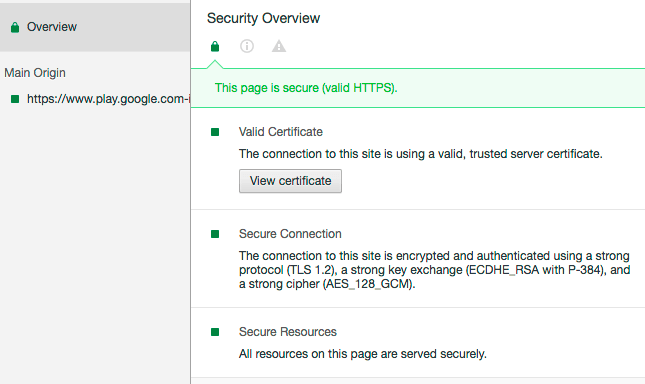
    If you click “View certificate” here is what you see:
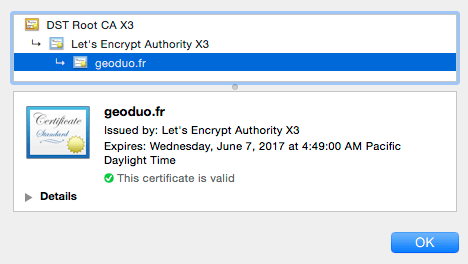
    The certificate is listed as belonging to geoduo.fr but it is in fact used by many other websites. In the network tab you can see that list of sites: (Showing just the first few)
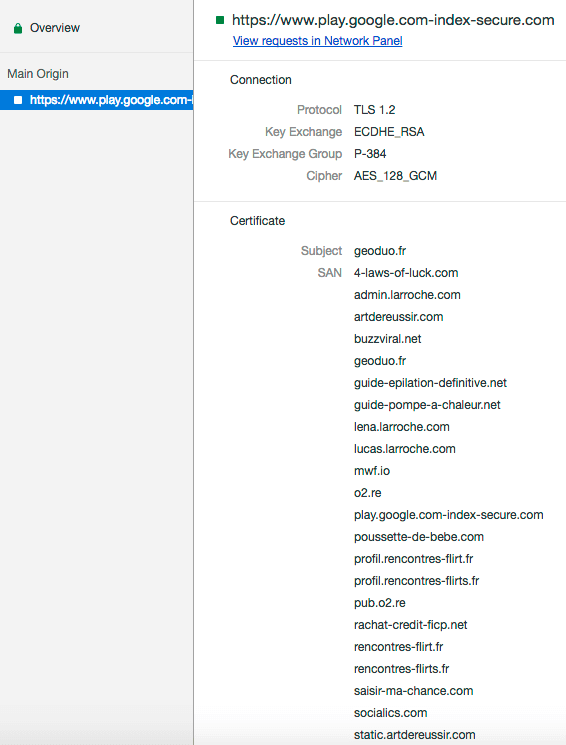
    All of these sites share the same certificate. This can mean several things. It may mean that they are operated by the same individual. It can also mean that the hosting provider who hosts this site, OVH SAS France in this case, issued a free certificate to this site and lumped a lot of other sites into the same SSL certificate.

    As you can see, “Secure” in this case simply means that you are talking to a malicious website using an encrypted connection. It does not mean the site is “Safe”.

    The Problem is not just LetsEncrypt. It is other certificate authorities (CAs) too.

    This problem is not just confined to LetsEncrypt, although they are by far the most common CA that phishing sites are using now. In the example below, the website is pretending to be Apple.com so that it can steal your Apple login credentials:

    At the time of writing (March 28th at 1am Pacific Time) this site was not listed in the Google Safe Browsing list and Chrome was showing it as “Secure”. In this case the certificate was issued by Comodo.

    Even if a CA revokes a certificate, Chrome still shows it as “Valid” and “Secure”.

    Let’s take a look at the Comodo certificate in the above example. First we go to ‘Dev Tools’ in Chrome and open the ‘Security’ tab:
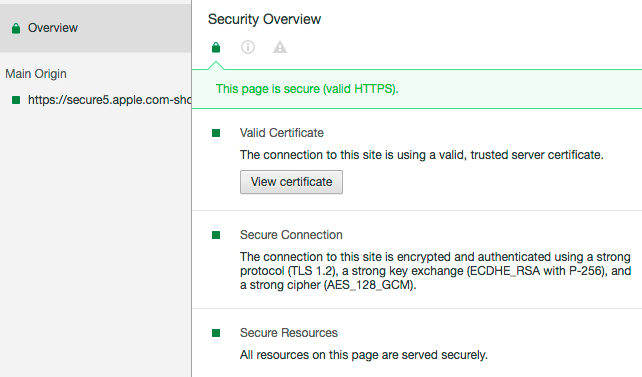
    As you can see the Security Overview says the page is “secure”. Now let’s click on “View certificate”:
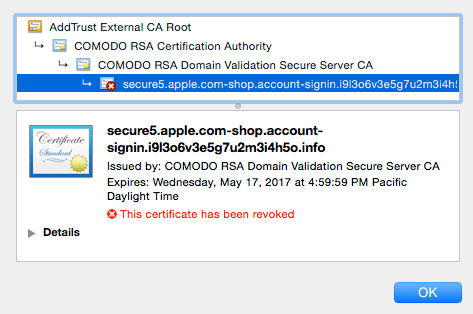
    It turns out that this certificate has been “revoked”. What that means is that Comodo, the CA in this case, realized that the certificate belongs to a malicious website after they issued it and they decided to mark it as invalid.

    Because Chrome does not check certificate revocation lists in real-time, it shows the certificate as valid in the location bar and the site as “Secure”. Chrome is unaware that Comodo has revoked the certificate after Comodo realized they should not have issued it in the first place.

    You can’t rely on Chrome’s malicious site warnings from the Google Safe Browsing List

    To do the research for this post, we used a service called Censys.io to look up certificates for websites that match specific patterns. Then we found other domains that are using the same certificates. Domains that share certificates are often related and may have the same owner.

    The following is a graphic that shows a number of phishing domains we found in our research that are sharing certificates. In the graphic below, domains that are marked as malicious by Chrome are in red. The rest are green. The lines link domains that share SSL certificates.
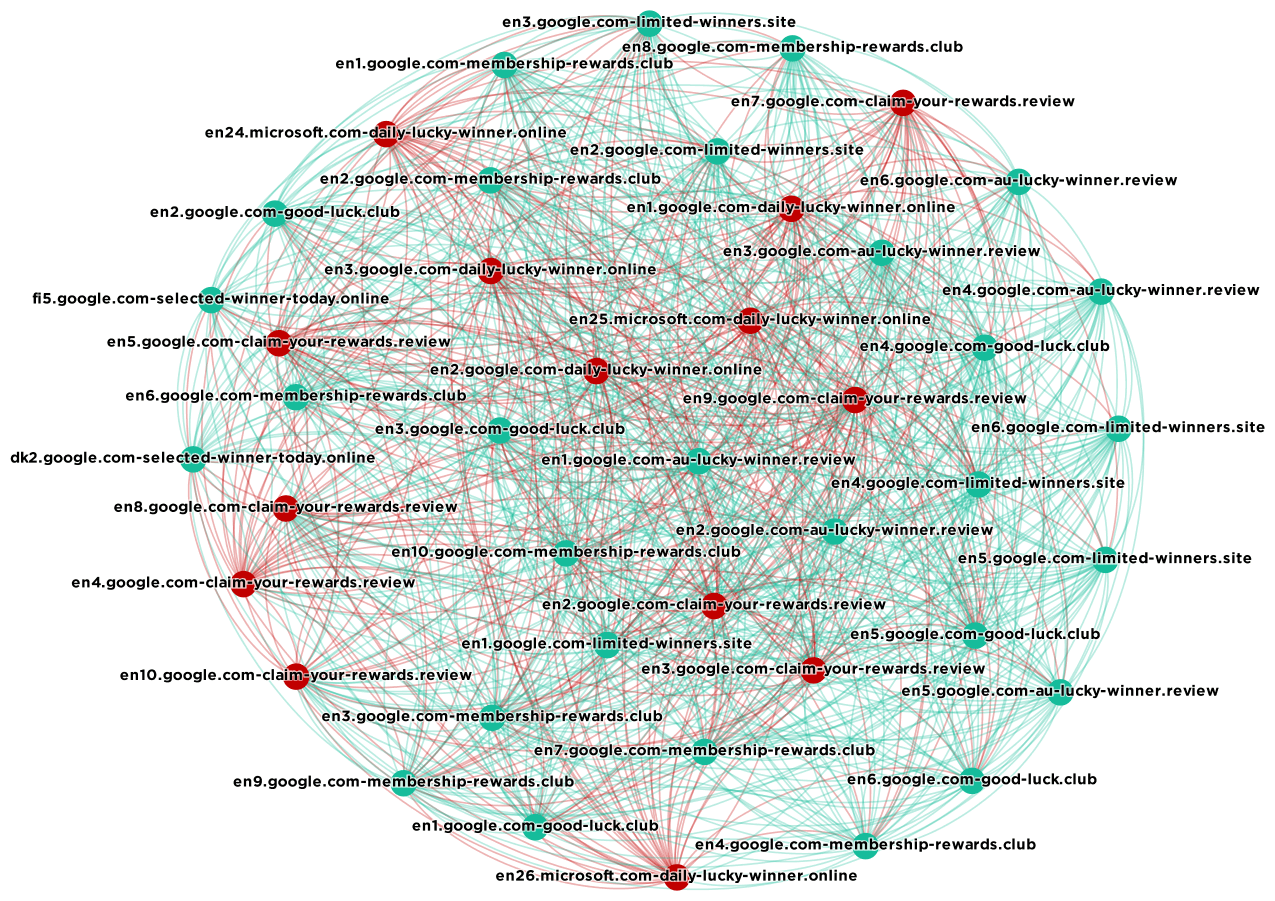
     

    As you can see the domains in this list are pretending to be either google.com or microsoft.com. Click the graphic for a larger view. Some of them are listed as malicious by Google’s Chrome browser. Most of them are not listed as malicious.

    The good news is that these domains will eventually end up on Google’s “safe browsing list” which is what Chrome uses to identify bad sites. This list was generated on the morning of Monday March 27th and by the evening some of the green domains above were appearing on the Google Safe Browsing list and Chrome was warning about them. But it does take time.

    While the Safe Browsing project that Google runs does great work, Chrome users can not rely on it to reliably identify malicious sites and throw up a warning.

    What should you do to ensure you stay safe on the web?

    The best way to protect yourself against malicious sites, in this case, is to check your web browser’s location bar and read the full website hostname that appears there.

    Look at the location bar above. You should see ‘https://www.wordfence.com/….’. When visiting any website that you plan to exchange sensitive data with, check the full hostname after ‘https://’ and before the next forward slash. If you don’t recognize it or if it looks like it has some weird stuff on the end, close the window immediately and think carefully about how you ended up on that website.

    Avoid clicking whatever link brought you to that website again.

    What can Google Chrome do to improve security?

    In my opinion Google actually does a pretty good job of staying on top of things. They responded quickly to our post earlier this year about a new Gmail phishing scam. They reached out to contact us and fixed the issue.

    Chrome must start looking up certificate revocation lists in real-time to fix the Comodo certificate issue we showed above. Having Chrome show a revoked certificate as “Secure” is not acceptable. However, doing this has performance penalties for Chrome users and it may also have privacy implications as websites that are visited are sent to CAs during the lookup. So it’s not a simple fix.

    I’d like to see the Google Safe Browsing (GSB) team using certificate relationships as we have used above to identify other malicious domains that should be on the GSB. They may be able to automate this. This will speed up the time it takes to get malicious sites listed on the GSB.

    I don’t think the “Secure” designator in the Chrome location bar is good enough. The Chrome team should consider a sliding scale that takes into account who the CA is, how many domains share the same certificate and the age of a domain and its certificate. There are other signals they can probably incorporate to produce a security score, rather than just a binary “Secure” or “Not Secure” designator for websites.

    What can LetsEncrypt do to improve security?

    The LetsEncrypt team must start doing keyword searches on SSL certificate applications. This can be fully automated and LetsEncrypt needs to reject certificates that contain strings like “.apple.com.”, “.paypal.com.”, “.google.com.” and other common phishing patterns.

    They could implement a review process where, if your certificate request is rejected, you can apply for a token which lets you bypass the check in future once you prove you need something with “.apple.com.” in it.

    What about other CAs like Comodo?

    In the example we provided above, Comodo actually realized the site was malicious and revoked the certificate. So they should be given credit for doing that. The problem was that Chrome does not correctly look up revoked certificates.

    The way CAs issue certificates has been a source of debate for some time. Google has put a proposal on the table to revoke Symantec’s ability to issue certificates based on a history of bad CA behavior from them. The proposal suggests immediately revoking Symantec’s ability to issue EV (extended validation) certificates and to gradually mistrust regular SSL certificates issued by them.

    There is a constant and lively debate between browser makers and CAs about how certificates should be issued and what constitutes a valid certificate.

    Spread the word!

    As browsers try to improve the way they represent the security of sites and CAs try to improve their processes, you can help secure the web by making sure you actually look at the hostname that appears in the location bar. Here is what a hostname looks like. It is the underlined part of the URL:

    Make sure:

    • You can see the entire hostname in the browser location bar.
    • You recognize the entire hostname.
    • Your browser says that your connection is encrypted. Chrome will show the word “Secure”.

    Share this message with those you care about. Less technical users may see the word “Secure” and think it means the site is “Safe”. It does not. By explaining to your friends and family what a ‘hostname’ is in the location bar and getting them to double check it, you will probably save at least one person from being the victim of a phishing attack.

    Credits: Thanks to Wordfence team member Sean Murphy who did the original research connecting malicious sites through their shared certificate use and developed the graph visualization. He also generated the data for this post. Thanks to Dan Moen for editing. 

    The post ‘Secure’ in Chrome Browser Does Not Mean ‘Safe’ appeared first on Wordfence.
  • 1.4 Million Attacks in 24 Hours: 32% Blocked by the New Blacklist

    Last Friday we quietly launched a new Premium feature in Wordfence: A real-time IP blacklist that completely blocks known malicious IPs from accessing your website. On Monday we did a second release with a few improvements. Then we announced the blacklist on Tuesday this week.

    Today we took a first look at data showing how many attacks the real-time blacklist is blocking each day on our Premium customer websites – and the data is incredible.

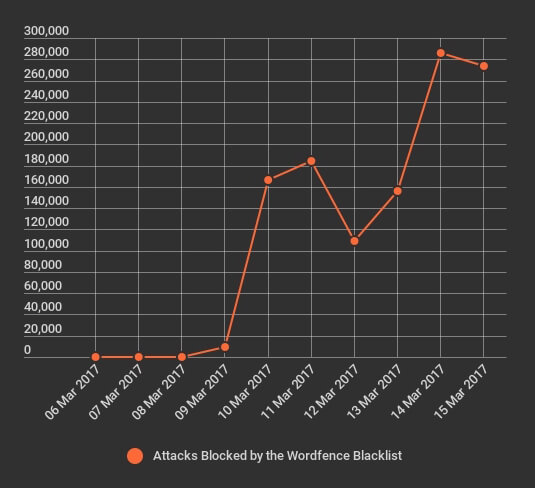
    First we generated a chart showing all attacks that have been blocked by the real-time blacklist since the initial Friday release. Here’s what it looks like:


    As I mentioned in our Tuesday announcement, we are releasing IPs to the blacklist in stages as we bring this feature into production over the coming weeks. Last Thursday we added 100 malicious IPs that are generating a large number of attacks and it had the immediate effect of blocking over 160,000 attacks per day on our Premium customer websites.

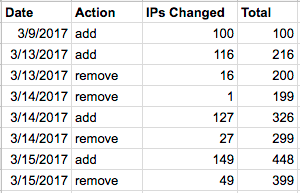
    After Thursday we gradually grew the list and occasionally removed IPs. This is what the changes to the blacklist looked like over the next few days:

    As you can see we are constantly removing and adding new IPs to the list. As we bring the blacklist online the list total is slowly growing and is currently hovering around 400 IPs. You can see the effect these changes are having in the chart above as the number of daily attacks the list is blocking is gradually increasing for our Wordfence Premium customers.

    Zero false positives!

    What is incredibly reassuring is that out of this huge volume of attacks, we have only had 4 reports that appeared to be false positives. Two of them were for the same IP address which is a very badly behaved Ukrainian IP that is definitely not a false positive. We investigated the reports and found that the customer sites were misconfigured which caused the false positive reports.

    We haven’t had a single legitimate false positive report which is great news. It means that our algorithms for determining which IPs should be on the blacklist are working perfectly.

    Measuring the blacklist efficacy

    Blocking a malicious IP outright is far better than only blocking the malicious requests from that IP address. This is because we don’t want a malicious IP to learn anything at all about our customer websites that could help them attack the site. Ideally, the target website should be completely inaccessible to a malicious IP so they can’t perform reconnaissance before an attack to learn more about their target.

    We wanted to measure what percentage of attacks on our customer sites are being blocked by the blacklist at this point, even though the list is still relatively small. To generate this report, we looked at the data from the past 24 hours and only considered sites that have been running the newest version of Wordfence Premium for the full 24 hours with the blacklist enabled.

    During the period we saw a total of 1,415,330 attacks on the sites that we analyzed. If we break this out into it’s component parts, that is 107,956 attacks blocked by the firewall, 845,591 brute force attacks blocked by Wordfence and 461,783 attacks from IPs on the new blacklist were blocked.

    That means that 32.6% of attacks on these sites in 24 hours were blocked by the new IP blacklist! The rest were blocked by the Wordfence firewall and brute force protection.

    That is incredible considering the blacklist is only 399 IPs right now.

    The reason we’re seeing this is because attacks on WordPress sites are a long tail. A small number of IPs generate a huge number of attacks and a large number of IPs each generate a much smaller number of attacks. So when we blacklist the top 399 IPs, we see this effect where a large number of attacks are stopped.

    Our goal is of course to block all malicious IPs or get as close to that as possible. The effectiveness of an attacker is not always directly proportional to the number of attacks they launch. So we need to block the low volume attackers too and we will do just that as we expand the blacklist over the coming days and weeks.

    Conclusion

    This data is incredibly exciting because it demonstrates how effective the new Wordfence Premium blacklist is at completely blocking known malicious IPs from consuming resources and from accessing anything on our customer WordPress websites.

    As always I will be around to reply to your questions and comments below. I hope you’re as excited about this new feature as we are. This is beginning to feel like we have completely changed the game on anyone attacking WordPress!

    The post 1.4 Million Attacks in 24 Hours: 32% Blocked by the New Blacklist appeared first on Wordfence.

  • Support End-to-End Encryption on the Web

    The Wordfence Team would like to encourage website owners and Internet users to support end-to-end encryption on the Web. Today we are announcing that our official position is the following:

    1. Wordfence is a strong supporter of end-to-end encryption for the online community.
    2. We suggest that you avoid services that break end-to-end encryption by intercepting and decrypting traffic.
    3. We encourage website owners to implement HTTPS on their websites in a way that provides end-to-end encryption for their site visitors and customers.
    4. We encourage corporate network owners and CISOs to avoid products that perform HTTPS interception and break end-to-end encryption.
    5. We encourage site owners to avoid Cloud products that perform HTTPS interception and decryption, like Cloud WAFs.

    What is end-to-end encryption?

    When your web browser connects directly to a website using HTTPS, your connection is end-to-end encrypted. If the website is using a Cloud WAF or similar service that decrypts traffic to inspect it, your connection is not end-to-end encrypted because your traffic is decrypted at the cloud WAF, not at the website you are visiting.

    Similarly if you are on an office network and the company is using an HTTPS interception product to secure the network, they are also decrypting your traffic before it reaches the destination. This is not end-to-end encryption.

    End-to-end encryption never decrypts traffic between the browser and web server.

    Why is end-to-end encryption important?

    When your website visitors are visiting your site and see the green “Secure” indicator in their location bar with a lock icon, they have a reasonable expectation of privacy and security. Their expectation is that their communications are being conducted via HTTPS which verifies the identity of the server they are talking to and provides a secure communication channel from the browser to the web server.

    Products that intercept HTTPS traffic break this security model without the website visitor realizing it. The site visitor continues to see the same security indicators in their web browser and are unaware that their connection is being intercepted and inspected.

    In some cases the remote web server’s identity is no longer verified and error messages related to verification are hidden from the site visitor. The connection after the point of interception may also no longer be encrypted and the site visitor is also not made aware of this important fact.

    How can I ensure that my website visitors have end-to-end encryption?

    The good news is that providing end-to-end encryption is easy. Simply set up a website that uses HTTPS and don’t use any services that intercept traffic. A cloud WAF is an example of an HTTPS interception service.

    If you use a CDN, ensure that you are serving static assets from the CDN and that you haven’t given the CDN your SSL key so that it can decrypt your customer traffic.

    What are some of the problems with breaking end-to-end encryption?

    Cloud WAF providers decrypt HTTPS traffic so that they can inspect it for exploits. The problems this introduces are:

    1. In some configurations they don’t re-encrypt the HTTPS traffic, leaving it to pass unencrypted over the internet.
    2. In some configurations they don’t verify the identity of the web server the visitor is communicating with and they hide this fact from the site visitor.
    3. In all configurations, traffic between a browser and website is decrypted for inspection on a server owned by a third party.

    Corporate HTTPS interception products also decrypt HTTPS traffic to inspect it as part of a corporate security policy. This creates the similar problems which have been described in detail by the Software Engineering Institute at Carnegie Mellon University.

    What are other experts saying?

    US-CERT is the United States Computer Emergency Readiness Team. They are an organization within the US Department of Homeland Security. US-CERT has previously released Alert TA15-120A which explains how important it is to secure end-to-end communications. It also explains that when end-to-end encryption is broken, it enables potential MITM or man-in-the-middle attacks.

    Yesterday US-CERT released Alert TA17-075A titled “HTTPS Interception Weakens TLS Security”. The alert includes:

    Many HTTPS inspection products do not properly verify the certificate chain of the server before re-encrypting and forwarding client data, allowing the possibility of a MiTM attack. Furthermore, certificate-chain verification errors are infrequently forwarded to the client, leading a client to believe that operations were performed as intended with the correct server.”

    In Alert TA17-075A, US-CERT is referring to HTTPS interception products that are used on corporate networks. We extend this point of view to any HTTPS interception products, including cloud WAFs.

    Wordfence is recommending that website owners move away from cloud WAFs.

    Cloud WAFs are HTTPS interception products. They decrypt traffic and in some configurations they either don’t re-encrypt it, or they don’t perform certificate validation to verify the identity of the website being visited. This breaks end-to-end encryption.

    Wordfence’s official position is that we don’t recommend our customers use cloud WAFs. Instead we recommend that you use an endpoint security product which is installed on the website itself and does not rely on breaking end-to-end encryption.

    If you are using a cloud WAF, we recommend you eliminate the cloud WAF and provide full end-to-end encryption for your website visitors. If you need a site accelerator, use a CDN provider to speed up your site. You can find a large list of CDN providers here.

    Very few websites are ever targeted using a DDoS attack, but if you feel you may be the target of a DDoS attack, you can choose a hosting provider that provides DDoS mitigation at the endpoint, like WPEngine or Hetzner. Your existing host may provide it.

    Conclusion

    At Wordfence, we aren’t opposed to cloud WAFs because we make an endpoint security product. We make an endpoint security product because we are opposed to cloud WAFs.

    Building Wordfence as a firewall and malware scanner that runs on the WordPress website itself (the endpoint) was a conscious choice by our engineering team. Running on the endpoint lets us make better blocking decisions using data like user identity, which cloud WAFs don’t have. It also means that we don’t break end-to-end encryption for site visitors.

    We have recently seen how intercepting and decrypting web traffic can have catastrophic effects when the decrypted data leaks onto the public internet through software errors. We believe that making a strong commitment to end-to-end encryption is the best way to ensure the privacy and security of the online community.

    Mark Maunder – Wordfence Founder & CEO.

    The post Support End-to-End Encryption on the Web appeared first on Wordfence.

  • 5 Security Questions For Your Hosting Company

    In the past month, our forensic analysts ran into two situations where we saw a significant number of site cleaning customers, all from the same hosting companies, all with the same malware. In both cases the sites were infected due to a hosting company security issue.

    We reached out to both of them and provided the relevant information and they were responsive. We won’t be mentioning them by name on the blog.

    We have seen a third host this week that is not correctly isolating customer accounts on shared servers. They appear to have a filesystem permissions issue. They haven’t had any problems yet, but it is just a matter of time.

    We decided to write a quick post that helps you determine whether your hosting company may be putting you at risk and whether that risk can be mitigated or whether you should consider moving to a new hosting company. We have a great article already on how to choose a WordPress hosting company, but what if you already have one?

    The following are questions we think your hosting company should be able to answer.

    Are you running up-to-date versions of the following products: CPanel, Operating System, Caching Technology, PHP, phpMyAdmin and MySQL?

    In our Learning Center article on security hardening for WordPress sites, we have a great section and accompanying graphic on what your hosting provider is responsible for versus you, the site owner.

    The important takeaway here is that the hosting company is actually responsible for a lot. Even if you are managing the security aspects of your website flawlessly, you could still be at risk if your hosting company isn’t holding up their side of the bargain.

    One of the hosting companies we referred to earlier in the post was running a version of phpMyAdmin that is almost 2 years old and contains multiple known security vulnerabilities. It was no surprise to us that their customers were getting repeatedly hacked.

    You should note that a host may be able to run an older version of software if they use ‘backported’ security fixes. That means they are using old software that has had new security fixes applied. If you do find that they are running an old version of something, ask them if they have applied the latest security fixes.

    We are constantly reminding everyone to keep their themes, plugins and WordPress core up to date. Make sure that your hosting company is keeping the rest of your site software up to date as well.

    Are you completely isolating hosting accounts from each other? Or is it possible for one hosting account to read files in another account on the same server?

    We have seen hosting companies who were not correctly isolating user accounts from each other. That means that if an attacker gets a hosting account at one of these companies, perhaps by using a fraudulent card, they can access files in other hosting accounts.

    In one case, an attacker was using an existing hosting account to read the wp-config.php file in other hosting accounts which contains the database server address, username and password. The attacker then simply used their database access to create an admin level user and they had full access to the compromised website in the target hosting account.

    You should ask your hosting company if other users on the same server as you can access your account. Users on your server should not be able to access any files in your account. Accounts should be completely isolated. 

    Are my server logs available and how long are they kept?

    When a WordPress website is compromised by an attacker, one of the most important sources of information our forensic team has to determine how the site was hacked are the server logs. Unfortunately we often find that customers with entry-level hosting plans either don’t have access to server logs at all, or that they are retained for such a short amount of time that they aren’t helpful.

    We recommend a WordPress hosting plan that gives you immediate access to log files going back at least 24 hours. Ideally you should also have the ability to archive log files that are older than 24 hours, for 30 days.

    How are you backing up my site and how long are backups being retained?

    The fastest way to recover from a hacked website is by restoring a good backup of your site. Having quick access to a backup of your site can save you time, money and a lot of work. Find out what your hosting company is backing up, how long they are retaining it and where they are storing it.

    If you’re on an entry-level hosting plan it is very likely that you will need to augment what your hosting company is already doing. In many cases they may not be doing anything at all.

    Does my current hosting plan allow me to enable HTTPS?

    In the Introduction to WordPress Security article in our Learning Center we explain why it is crucial to only log into your website via a secure connection. If you aren’t currently logging into your site securely, drop everything you are doing and go fix that right away. An attacker who is listening to your network traffic can steal your username and password, taking control of your website.

    There are additional benefits to running https. It will improve your SEO rankings and it will protect any other data you are capturing via forms and payment screens on the rest of your site. We strongly recommend that you run an https-only website if possible.

    Conclusion

    We hope this post helped bring awareness to some of the hosting-related security issues that you need to stay on top of. Your hosting company plays a critical role in securing your website. Unfortunately not all of them are created equal, so make sure that yours is providing a strong security foundation for your WordPress website.

    The post 5 Security Questions For Your Hosting Company appeared first on Wordfence.