Online Services

Category: Security

  • Wordfence 7 Update

    It has now been a few weeks since we launched Wordfence 7. Overall we are confident that the change was a good one. The product is now cleaner, more modern and is much easier for a new user to navigate.

    It was, however, a big change, and with that came plenty of questions, feedback and a few unanticipated issues. Thank you to everyone who has provided us feedback. We have read all of it, and are sincerely humbled by how passionate so many of you are about our product.

    At this point we have worked through most of the post-launch issues that were discovered. We have released two updates packed with fixes and changes based on feedback. Our support volumes are now back to normal and Wordfence 7 related questions have died down.

    With that we wanted to call your attention to a number of things we have either changed or got a lot of feedback on.

    The Options Page is Back

    This was far and away the topic we got the most feedback on. And the most passionate feedback. While we are still confident that our new approach of aligning settings with features throughout the plugin is the right one, we definitely overlooked the need for admins to quickly configure Wordfence with a minimum number of clicks.

    With the release of Wordfence 7.0.3 we added a new page called All Options which you will find in the main Wordfence menu. This page includes 100% of the options available in the plugin.

    Prior to Wordfence 7, we did have an options page with most settings, but this only included about 85% of all available options. Your feedback indicated that you wanted that page back so that you can quickly access and configure Wordfence on a single page. We have brought that page back and improved it by making sure that 100% of all options are now on the new “All Options” page included in Wordfence 7.0.3.

    This is what it looks like:
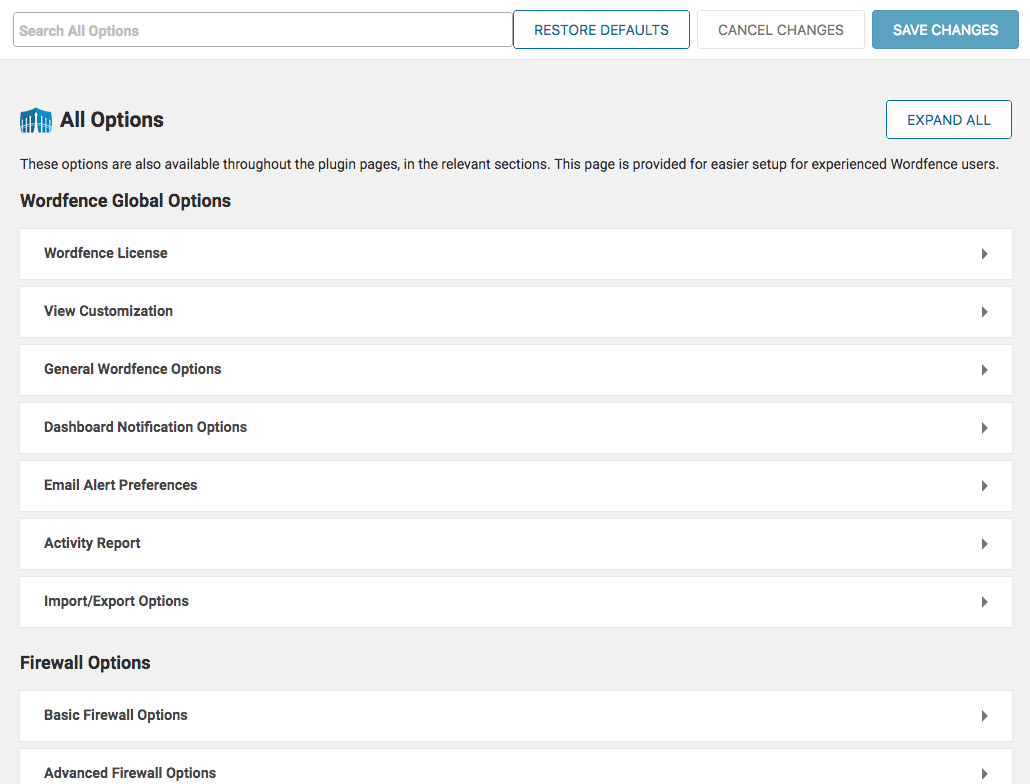
    Options are grouped by category in collapsible sections. Sections can be expanded and collapsed both individually and as a group using a toggle at the top of the page. We also added a search feature at the top of the page which has proved to be very popular already.

    Everything is Still Available

    We took literally zero features away with Wordfence 7, free or otherwise. If you’re having a hard time finding something, we swear it’s still there! If you need help chasing it down please contact us via our awesome new Help page and we’ll get you straightened out.

    We Added a Toggle for the Expanded Live Traffic View

    We love the new condensed Live Traffic view and so do most of you. However, many of you prefer the expanded view, seen below, which is the closest to what things looked like before Wordfence 7. We learned that many people had a hard time finding the option to change the view, so we have now made it more prominent, in the form of a toggle at the top of the page.

    You Can Add Live Traffic and Blocking to the Main Wordfence Menu

    One of our goals with Wordfence 7 was to simplify the interface, putting more emphasis on the core features and less on the rest. With that in mind we made the tough decision to remove Live Traffic and Blocking from the main Wordfence menu. We knew that a small group of our users would dislike this change. That’s why Wordfence 7 launched with options to add them back.

    If you haven’t found that option yet, you can find it in the ‘View Customization’ menu either at Dashboard > Global Options or the All Options page.

    What’s on the Horizon

    2018 promises to bring many more positive improvements to the Wordfence plugin. We have a really exciting project we are working on to make it much easier to manage Wordfence across multiple sites. If you have any thoughts on that, we would love to hear more in the comments.

    In addition we have a long list of ways we plan to use Gravityscan technology to make Wordfence better. We’ll have more to share on those topics as the year progresses.

    Thank you very much for your feedback on the Wordfence 7 release. Our team will continue to listen and learn from our customers. Your input is extremely valuable and helps guide and shape Wordfence as it continues to be the most popular firewall and malware scanner for WordPress.

    The post Wordfence 7 Update appeared first on Wordfence.

  • Unwanted Pop-ups Caused by Injectbody/Injectscr Plugins

    Unwanted Pop-ups Caused by Injectbody/Injectscr Plugins

    Unwanted Pop-ups Caused by Injectbody/Injectscr Plugins

    On February 8th, 2018, we noticed a new wave of WordPress infections involving two malicious plugins: injectbody and injectscr. These plugins inject obfuscated scripts, creating unwanted pop-up/pop-unders. Whenever a visitor clicks anywhere on an infected web page, they are served questionable ads.

    Plugin Location

    The malicious plugins possess a very similar file structure:

    Injectbody

    wp-content/plugins/injectbody/

    • injectbody.php: 2146 bytes (the plugin code)
    • inject.txt: 2006 bytes (injected JavaScript)

    Injectscr

    wp-content/plugins/injectscr/

    • injectscr.php: 1319 bytes (the plugin code)
    • inject.txt: 3906 bytes (injected JavaScript)

    The functionality of these plugins are also very similar.

    Continue reading Unwanted Pop-ups Caused by Injectbody/Injectscr Plugins at Sucuri Blog.

  • Cryptomining Supply Chain Attack Hits Government Websites

    In the past 24 hours, Security researcher Scott Helme discovered that a third party accessibility plugin called ‘Browsealoud’ had their servers compromised. The plugin relies on a website including Javascript in their content in order to work. This compromise resulted in over 4,000 websites serving up cryptomining malware.

    The malware uses site visitor CPUs to mine for Monero cryptocurrency. The sites that use Browsealoud included the UK Information Commissioner’s office, UK National Health Service websites, an Australian provincial government website and many more.

    Texthelp is the company that makes the Browsealoud plugin. They are reporting that their product was infected for four hours, affecting sites that use the Browsealoud plugin before it was take offline. The product remains offline while they investigate.

    Cryptomining Attacks On The Rise

    In November we wrote about a WordPress plugin that was banned for including cryptomining code, specifically CoinHive code that mines Monero currency. In that case, if a website used the banned plugin, any visitor to the site would see their browser CPU resources exploited to mine Monero and the proceeds were aggregated using CoinHive and sent to the plugin owner. Back then I included a video showing how CPU fan speed increases as the workload increases from Monero mining.

    In December of last year, we wrote about a massive Monero cryptomining attack campaign that targeted WordPress.

    Scott reports that this campaign also used CoinHive code to mine Monero and send the proceeds back to the attacker.

    Supply Chain Attacks Have Wide Impact

    On January 2nd of this year, my colleague Dan Moen wrote about the emerging threat of supply chain attacks. He had mentioned to me that, in light of the rise in supply chain attacks we saw in 2017 targeting WordPress, it is quite likely that 2018 is going to see a large number of these kinds of attacks affecting site owners and we had better get the word out, which we did.

    As Dan wrote in January, “In the software industry, a supply chain attack exploits a trusted relationship between software vendors or authors and their customers.”. In that post we were focused on discussing the risk of compromised plugins affecting thousands of WordPress sites.

    This is another kind of supply chain attack that affects the “trusted relationship between software vendors or authors and their customers”. You trust a service distributing Javascript to maintain site security. If that service is compromised, it affects any website using that code – potentially thousands of websites. As is the case with WordPress plugins, Javascript supply chain attacks allow a malicious actor to compromise thousands of websites with a single hack.

    In the case of Browsealoud, the incident could have been much worse. The attacker could have stolen credentials from government websites in multiple countries. Instead, they simply exploited the CPU resources of site visitors to mine Monero cryptocurrency.

    How To Protect Your Site and Site Visitors From JS Supply Chain Attacks

    There is an easy way to protect yourself against Javascript supply chain attacks using a security feature called Subresource Integrity, or SRI. If you are including javascript code from an external source using the tag, simply include an ‘integrity’ attribute which will cause browsers to not load the script if it is modified from the original version.

    Normally you’ll include a script like this:

    To secure your site against JS supply chain attacks, change it to:

    Making this change is easy. You can visit this page to generate a hash and the inclusion code from a script URL.

    The ‘integrity’ attribute contains a ‘hash’ that uniquely identifies the content of the script. If that content changes, the browser can recognize that it has changed and will refuse to load the script. This gives site owners back control over what they load from remote servers, by refusing to load code that has changed from the original version.

    You should be aware that once you use SRI and include a hash for your scripts, if the vendor changes the script, it will not load. This has the benefit of protecting your site visitors if a hacker compromises the vendor site and injects malware into the javascript that you are loading. But it also has the side effect that if a vendor updates their code at that same URL, your script will no longer load.

    Some legacy vendors may rely on the ability to update their code at a URL whenever they please and have your site simply load the new code without you taking action. If a vendor includes a version number in the script URL, as in the jQuery URL above, then you probably don’t have to worry about this. But if the URL is something like //example.com/source/code/lives/here.js and there is no version specified, then check with the vendor to find out whether they will be updating the script you are using. They may need to notify you when they perform updates to avoid service interruptions.

    In general I would avoid any vendor that insists on the ability to remotely update code without you making a change to your website code. It’s a security risk, as this case illustrates.

    Javascript Supply Chain Attacks Are Real-Time

    The thing that differentiates a JS supply chain attack from other forms is that, once the attacker installs their malicious code, victims are instantly affected. No action is required by the site administrator or site visitors. Code is being loaded per visit from the compromised server and the moment a code change is made, it is active in victim browsers.

    This is different from application supply chain attacks or WordPress plugin supply chain attacks. An application supply chain attack needs a compromised application to be distributed before it exploits users. Desktop or mobile users need to upgrade to the new version before they are effected. Even if an auto-update is pushed out by the attacker somehow, there will be some delay before it is effective.

    A WordPress plugin supply chain attack needs site owners to update to the new compromised plugin version before it is active. Javascript supply chain attacks are instantly active and being loaded by site visitors as soon as the attacker saves the file to the distribution web server. That is why it is critically important to use SRI for all external scripts on your site.

    Please spread the word about the risk of Javascript supply chain attacks and how to mitigate them using Subresource Integrity or SRI.

    The post Cryptomining Supply Chain Attack Hits Government Websites appeared first on Wordfence.

  • WordPress Update Breaks Future Auto-Updates. Manually Update Now!

    [Update at 10:50am PST: Based on the comments we’ve received below, it sounds like this problem only affects certain sites.  We have received several reports of successful updates, although some of these may be the hosting provider updating WordPress installs manually. Overall this looks like good news for the WordPress team who reported this as a severe bug. If you have been impacted by this, let us know in the comments.]

    In an unfortunate turn of events, WordPress 4.9.3 was released earlier this week and it included a bug which broke WordPress auto-update. Millions of sites auto-updated from 4.9.2 to WordPress 4.9.3 and it broke their ability to auto-update in the future.

    What Broke?

    WordPress 4.9.3 included a bug that causes a fatal PHP error when WordPress tries to update itself. This interrupts the auto-update process and leaves the site on 4.9.3 forever.

    The core developers tried to reduce the number of API calls that occur when an auto-update job is run. According to the WordPress core development blog:

    #43103-core aimed to reduce the number of API calls which get made when the autoupdate cron task is run. Unfortunately due to human error, the final commit didn’t have the intended effect, and instead triggers a fatal error as not all of the dependancies of find_core_auto_update() are met. For whatever reason, the fatal error wasn’t discovered before 4.9.3’s release – it was a few hours after release when discovered.

    Only Actively Maintained Sites Are Affected

    WordPress has included the capability to auto-update since WP version 3.7, which was released four years ago. The WordPress auto-update function only updates minor versions by default. That means that only releases that change the number to the far right of your WP version will auto-update. In other words, if you were on 4.9.3 and 4.9.4 is released, your site will auto-update. But If WordPress 5.0.0 is released, your site will not auto-update by default.

    It’s important to understand that WordPress works this way, because that limits the number of sites that auto-updated to the version that broke auto-update. Only WordPress sites running 4.9.2 would have updated automatically to 4.9.3, which broke auto-update.

    This is important because A) It means that the population of websites that now have a broken auto-update is smaller than ALL WordPress sites and more importantly B) The sites that have a broken auto-update would have been manually updated by the site owner when WordPress 4.9 was released.

    This means that every site affected by this was manually updated to WordPress 4.9 “Tipton” after November 16, 2017 when 4.9 was released. So, while this bug is unfortunate, the good news is that, for the most part, it only affects actively maintained sites that have been manually updated by the admin within the last 3 months. If a site was not updated to WordPress 4.9 during that time, it will still be on an older track and will not have received the broken auto-update.

    The sites that we are most concerned about are sites that are unmaintained. If auto-update broke on those sites, they may not receive another update for several years, until someone remembers the site exists and does an update. Those unmaintained sites are not affected by this and will continue to auto-update.

    For example, we have an unmaintained test website that is currently on WordPress version 3.9.23 and it has been steadily receiving auto-updates without any updates from us. That site is not affected by this bug and it received it’s most recent auto-update on January 16th.

    Update Your Site Manually Now

    Some of you will find that your hosting company has taken care of this for you, especially if you are on a ‘Managed WordPress’ plan. If you are now stuck on WordPress 4.9.3, you will need to manually update your site to continue receiving auto-updates. To update manually and get past this broken auto-update issue, simply sign into your WordPress site as your admin user and visit Dashboard → Updates and click “Update Now.”

    After the update, make sure that your core version is 4.9.4. You can scroll down and check the bottom right of your admin panel and it should say “Version 4.9.4”.

    Please share this info with the WordPress community to help make them aware than they will need to sign into their sites and do the manual update to get past version 4.9.3 and this issue.

    The post WordPress Update Breaks Future Auto-Updates. Manually Update Now! appeared first on Wordfence.